Guides · Selective Test
The computer-based Selective Test: the real screen, and no calculator
The NSW Selective Test has been computer-based since 2025. Your child sits it at an assigned test centre, on a device the Department of Education provides, running the Janison test platform built in partnership with Cambridge University Press and Assessment. You don't have to imagine the screen — the Department's own free practice tests show the real interface today, months before test day.
- Computer-based for every sitting since 2025 — no more pencil-and-booklet format.
- Four sections, 25% each: Reading (17 questions, 38 answers, 45 min), Mathematical Reasoning (35 questions, 40 min), Thinking Skills (40 questions, 40 min), Writing (1 typed task, 30 min).
- Delivered by Janison, with test design by Cambridge University Press and Assessment.
- Free official practice tests published by the Department, no account required.
- No calculator, no dictionary, in any section, on screen or off.
See it before test day
Before anything else: sit the Department's own free online practice tests (updated 20 March 2026, accessed 16 August 2026), at se-practice.au.insights.janison.com/pages/shs. They're free, official, and the closest thing to test day there is — this page is not a substitute for sitting them.
Selective Papers NSW is independently run. We are not affiliated with, endorsed by, or acting on behalf of the NSW Department of Education or Janison. The screenshots and descriptions below are our own comparison, made while building this site's online test mode, shown here for parent education only.
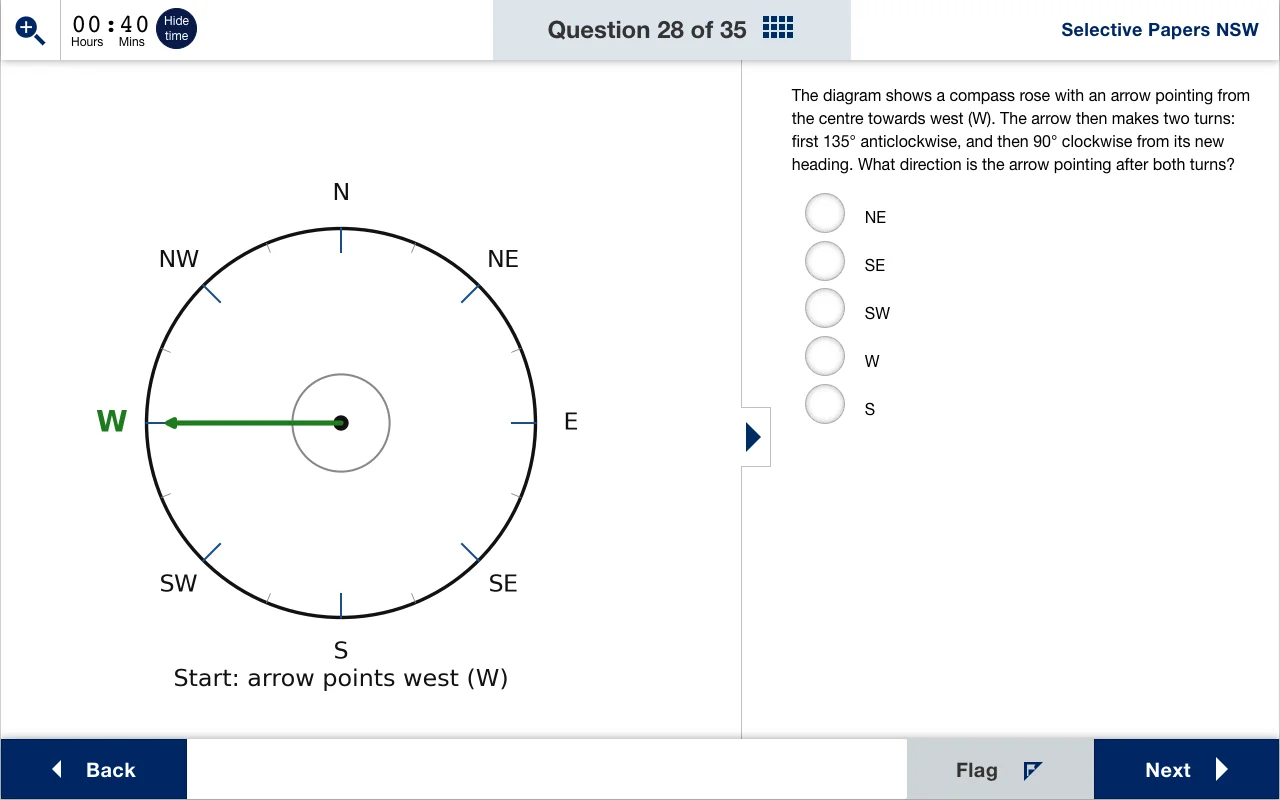
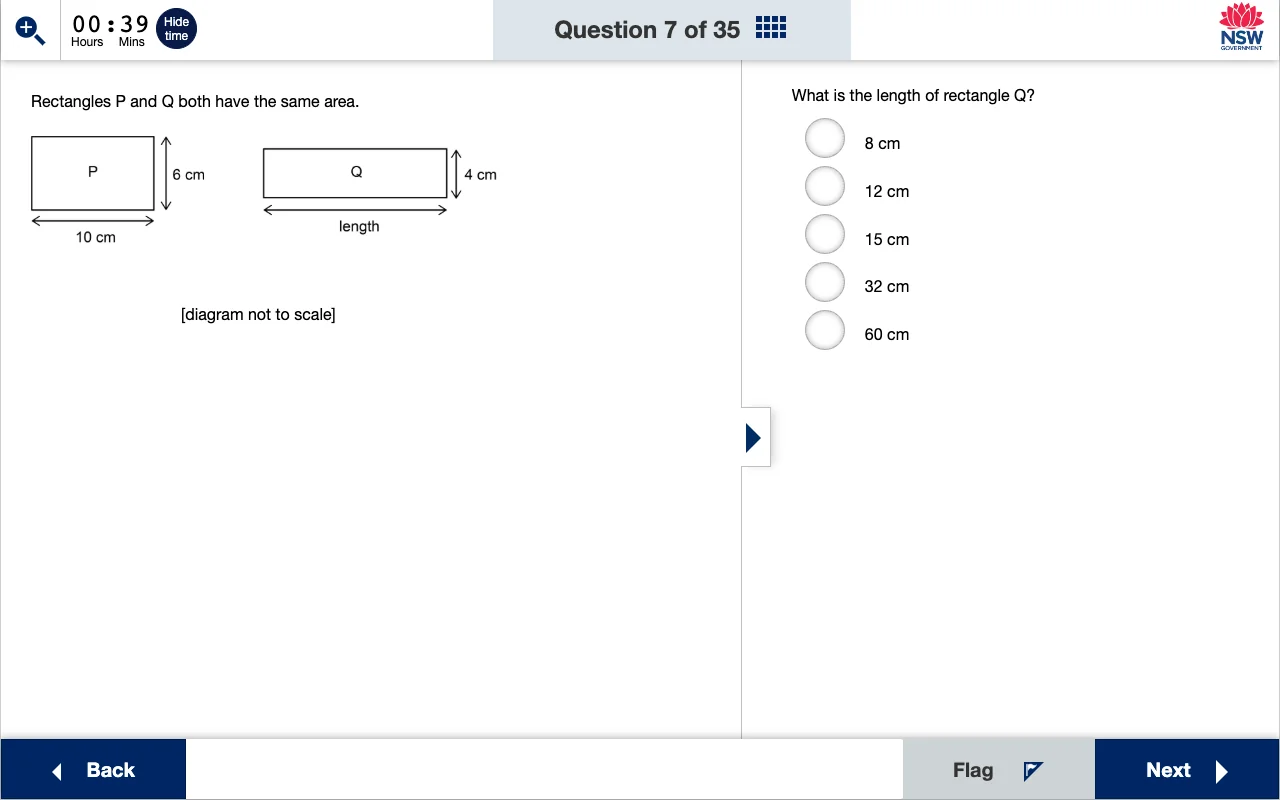
On the left, our test mode. On the right, the Department's official practice player. We built ours by opening the real one in devtools and matching it control by control — not by guessing at what an exam screen "should" look like. The questions differ, because ours are ours: what is modelled on the official player is the interface around them — the two-pane split, the timer and its "Hide time" control, the question counter and progress grid, the plain radio options with no letters beside them, and the Back / Flag / Next footer.
What the on-screen test consists of
The computer-based NSW Selective High School Placement Test is four sections sat in one day on the Janison platform, each worth 25% of the placement score: Reading — 17 questions, 38 answers, 45 minutes, four options; Mathematical Reasoning — 35 questions, 40 minutes, five options; Thinking Skills — 40 questions, 40 minutes, four options; and Writing — one typed task, 30 minutes. Janison delivers the platform under a five-year contract with the NSW Department of Education signed in 2024; Cambridge University Press & Assessment develops the test content and marking. Nothing is answered on paper, and there is no on-screen calculator or dictionary anywhere in the interface.
| Section | Questions | Total answers | Time | Options | How it's answered on screen |
|---|---|---|---|---|---|
| Reading | 17 | 38 | 45 min | 4 | Mostly one question per screen, four radio options. Three screens are multi-part: a cloze passage answered through inline dropdowns; a gapped text answered by clicking one of seven extracts in a shared bank, then clicking the gap it fills (six gaps, seven cards, one never used); and ten statements matched to four extracts read via tabs. |
| Mathematical Reasoning | 35 | 35 | 40 min | 5 | One question per screen, five radio options (A–E). Working out is done on paper beside the screen — there is no calculator. |
| Thinking Skills | 40 | 40 | 40 min | 4 | One question per screen, four radio options (A–D). No multi-part sets. |
| Writing | 1 task | 1 | 30 min | Open response | Typed directly into the test software — nothing handwritten. Planning can be done on paper or on screen before typing. |
Question counts, answer counts, times and weightings from the NSW Department of Education's Selective High School practice tests page (accessed 16 August 2026); option counts from the three official practice papers; the on-screen mechanics from our own screen-by-screen walkthrough of the live Janison practice player in July 2026.
The one figure worth pinning down, because so much material online still gets it wrong: Reading is 17 questions carrying 38 answers, not 30 questions. Three of the seventeen are grouped multi-part sets, so the player's header reads "Question 9 of 17" while your child works through 38 answers. Reading is also the only section where the answering mechanic changes mid-way — the other three sections are the same radio buttons all the way down. The Opportunity Class test runs on the same platform in the same way, at 14 Reading questions / 33 answers in 40 minutes, 35 Mathematical Reasoning questions in 40 minutes, and 30 Thinking Skills questions in 30 minutes, with no Writing task.
Element by element: what your child will actually see
We walked the Department's practice player screen by screen in July 2026 and checked it against our own test mode, element by element. Here's what's actually on screen, and the one line worth saying to your child about each.
| Interface element | What it does | What to tell your child |
|---|---|---|
| Countdown timer | Sits at the top left, labelled in Hours and Mins rather than a bare number. A labelled "Hide time" button beside it hides the clock if you'd rather not watch it. Double-clicking the digits reveals seconds for the final stretch. | If watching the clock makes you anxious, hide it — you can bring it back any time. Nobody is marked down for using the toggle. |
| Flag-for-review button | Sits beside each question. Clicking it drops a small coral corner ribbon onto that question's tile in the progress-summary grid, so it's easy to spot later. | If you're not sure, flag it and keep moving. You won't lose time hunting for it — the grid remembers for you. |
| Progress-summary grid | A grid of numbered tiles, one per question, reachable at any point in the section. Filter chips along the top narrow it to Answered, Not answered, Not read, or Flagged. | In the last few minutes, filter to "Not answered" — it's the fastest way to check nothing's been left blank. |
| Zoom | Enlarges the on-screen text and diagrams up to 300%, without breaking the layout or costing extra time. | If a diagram or a line of text is hard to read, zoom in. It's there to be used, not just for students with a vision plan. |
| One question per screen | Shows a single question at a time rather than a scrolling list. Next and Back move within the section, and the progress grid lets you jump straight to any question. | You can move backward and forward freely inside a section — nothing locks in until the section itself ends. |
| Confirm modals | A pop-up asks you to confirm before you submit a section or exit early, so nothing is finalised by an accidental click. | You can't submit by mistake. If a box pops up asking you to confirm, read it, then decide. |
| Review screen | After an attempt, correct answers are marked with a black check mark and a grey highlight. There's no red cross, and no separate marker for a wrong answer versus a blank one — both simply aren't checked. | The review only shows what was right, not what was wrong or skipped — so don't go looking for red marks. They're not there. |
| No calculator, no dictionary | There is no on-screen calculator or dictionary anywhere in the interface — nothing to tap even if you go looking. | Keep doing working-out on paper next to the screen. That habit doesn't change just because the test is on a computer. |
The one thing that catches parents out
It's the review screen. Parents who've sat the HSC or NAPLAN expect a mark-up: right answers in green, wrong ones in red, blanks flagged separately. The Janison player doesn't do that. A correct answer gets a black check mark on a grey highlight — full stop. A wrong answer and a question your child never got to look identical: both are simply unchecked. There's no on-screen way to tell "I answered and got it wrong" from "I ran out of time and never saw it." If your child mentions this after a practice attempt, it's not a bug and it's not you missing something — that's the whole design.
Can you use a calculator in the Selective Test?
No. A calculator is not permitted in any section of the Selective Test, and there is no on-screen calculator anywhere in the interface — nothing to tap even if you go looking. The same goes for a dictionary. The Department's own guidance is explicit that students cannot use either during the test, so every calculation in Mathematical Reasoning is done by hand: 35 questions, 40 minutes, mental arithmetic and rough working only.
That makes the no-calculator rule a preparation target in its own right, not a footnote. Three habits do most of the work:
- Drill mental arithmetic to fluency. Times tables, quick doubling and halving, adding and subtracting without writing every step — speed here buys time for the genuinely hard questions.
- Estimate before you calculate. Many questions are multiple choice; a fast estimate often eliminates two or three options before any exact working, and catches a slipped decimal point.
- Work on paper beside the screen. Test centres allow working-out on paper. That habit doesn't change just because the test is on a computer — set it up in every practice session so it's automatic on the day.
The section that leans on this most is Mathematical Reasoning. For how those questions are built and the arithmetic they lean on, see our Mathematical Reasoning practice papers and the Mathematical Reasoning question types guide.
Why this matters — and why it isn't a horror story
2025 was the first year the test ran fully computer-based statewide, delivered by Janison (with hardware from Hire Intelligence) under a five-year contract signed with the Department in 2024. On the first day of testing, 2 May 2025, event-management and crowd-control failures at three large external venues in Sydney — Randwick, Canterbury and Olympic Park — led the Department to cancel and reschedule 14,532 test sittings, out of roughly 27,000 students who sat an Opportunity Class or Selective High School placement test statewide that year (Dr Michele Bruniges AM, Independent Review of the 2025 Opportunity Class and Selective High School Placement Testing, 16 July 2025).
The NSW Government accepted all twelve of Dr Bruniges's recommendations in full (NSW Government ministerial release, 22 August 2025). Her report traces the failure to venue logistics and crowd management at oversized external centres — not to the test software itself. In the pilot survey her report cites, 89% of around 240 parents said their child found the software easy to use; the friction families actually described was queuing and drop-off, not clicking through questions on screen. From 2026, testing has moved out of large external venues into smaller, school-based test centres, capped at 300 students for larger sites and 180 for smaller ones, with one test session run per school per day.
None of that makes the screen itself something to dread — quite the opposite. It's one more reason familiarity is worth the ten minutes it takes. If your child already knows where the timer sits, what the flag button does, and that the review screen won't show them their mistakes, the format is one less unknown on a day that already has enough of them.
Where our practice fits
Start with the Department's own practice tests — free, official, and the real vendor's interface. Sit those first. Our online test mode exists for what comes after: more attempts, at the real question count and time limit, on a player we built and checked element-by-element against the official one — same timer behaviour, same flag-and-review workflow, same progress grid — so the format itself is one less thing on your child's mind by the time test day arrives.
We make no claim that extra practice improves a child's chances of a placement — this is familiarisation, not a performance promise. There's a free Mathematical Reasoning paper and a free Thinking Skills paper, each free for 24 hours with the online test mode included. To keep going, one pass unlocks every paper — from $12 for a day, no subscription.
Keep going
For the full run-through of dates, eligibility, and what to expect end to end, start with the NSW Selective Test guide. For everything free the Department publishes, including its PDF sample papers, see Selective Test past papers. And for the exact 2027 test window, see Selective Test dates 2027.
- Not sure yet?Try ten free questions — no email, no timer.
- Ready for the real thing?Get the free full paper — free for 24 hours, needs your email.
- Already convinced?Compare passes — every paper, from $12.
Questions about the computer-based test.
Is the NSW Selective Test really sat on a computer now?
Yes. Every sitting since 2025 has been computer-based, delivered at assigned test centres on devices the Department of Education provides, running the Janison test platform (built with Cambridge University Press and Assessment on test design). Students don't bring their own laptop.
How many questions are in each section of the computer-based Selective Test?
Four sections, each worth 25%, all sat on screen on the Janison platform: Reading is 17 questions carrying 38 answers in 45 minutes with four options; Mathematical Reasoning is 35 questions in 40 minutes with five options; Thinking Skills is 40 questions in 40 minutes with four options; and Writing is one typed task in 30 minutes. Reading is quoted as both 17 and 38 because three of its questions are grouped multi-part sets, so the player header counts out of 17 while your child enters 38 answers.
Can my child use a calculator or dictionary in the test?
No — neither is permitted in any section, and neither appears anywhere in the on-screen interface. The Department's own guidance is explicit that students cannot use a calculator or a dictionary during the test.
Where can my child try the real interface for free?
At the Department of Education's own online practice tests, se-practice.au.insights.janison.com/pages/shs — free, official, and the closest thing to test day there is. Sit those before anything else.